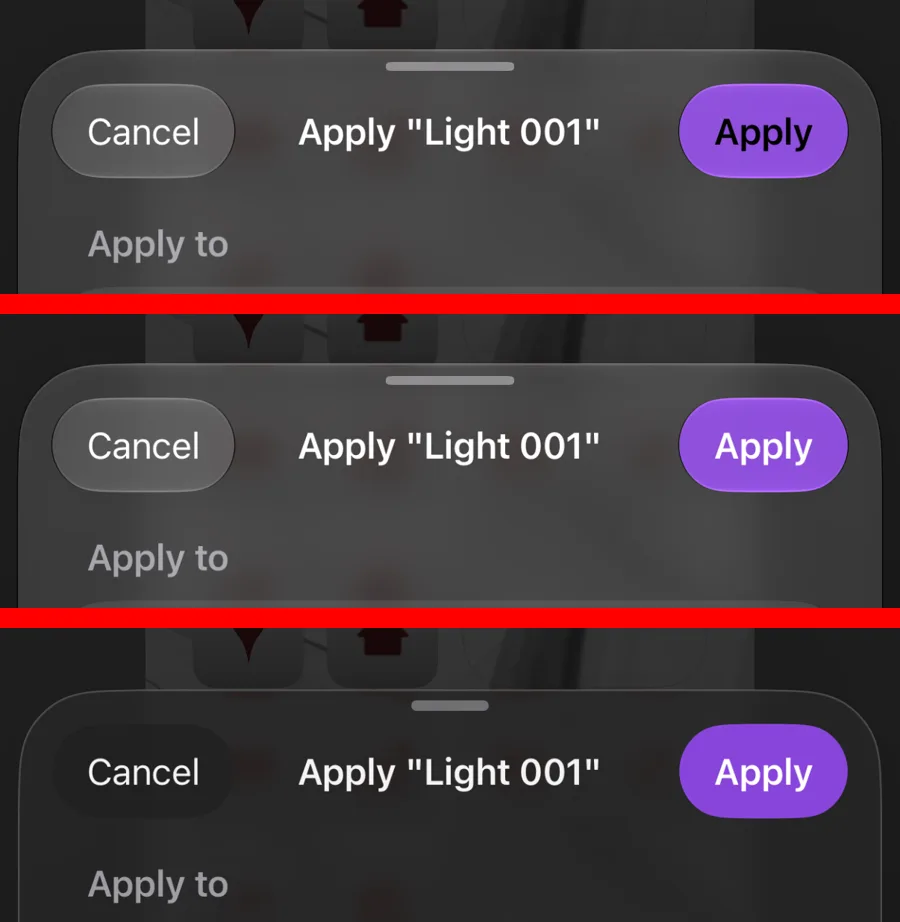
1.3 is out, and it's the biggest widget update so far! There are three new widgets: Gauge, Graph, and Retro Frame. Baked widgets can also get a glass or blur effect on their backgrounds now, and buttons are easier to read on iOS 26 and 27.
Where the ideas came from
I keep a folder of widget screenshots I like, and this update started there. It had five ideas in it: a volume slider, a Mac-style system monitor, step charts, a little playable piano, and some glowing retro LCD screens. Before writing any code, I checked each one against what iOS widgets can actually do.
The piano didn't make it, because the whole fun of it is playing it, and widgets can't make sound or react to anything but a tap. The volume slider couldn't control your volume either, since widgets can't read or change it and you can't drag them. I liked the look of it too much to drop it, though, so it turned into the Gauge.
Gauge
A Gauge shows your battery, storage, or memory, how much of the day, week, month, or year has gone by, or a countdown to a date you pick. You can also set your own value. There are five styles: Soft Ring, Arc, Open Arc, Capsule, and Slider. You can put an icon in the middle, either an SF Symbol or any icon from your Theme Studio packs.
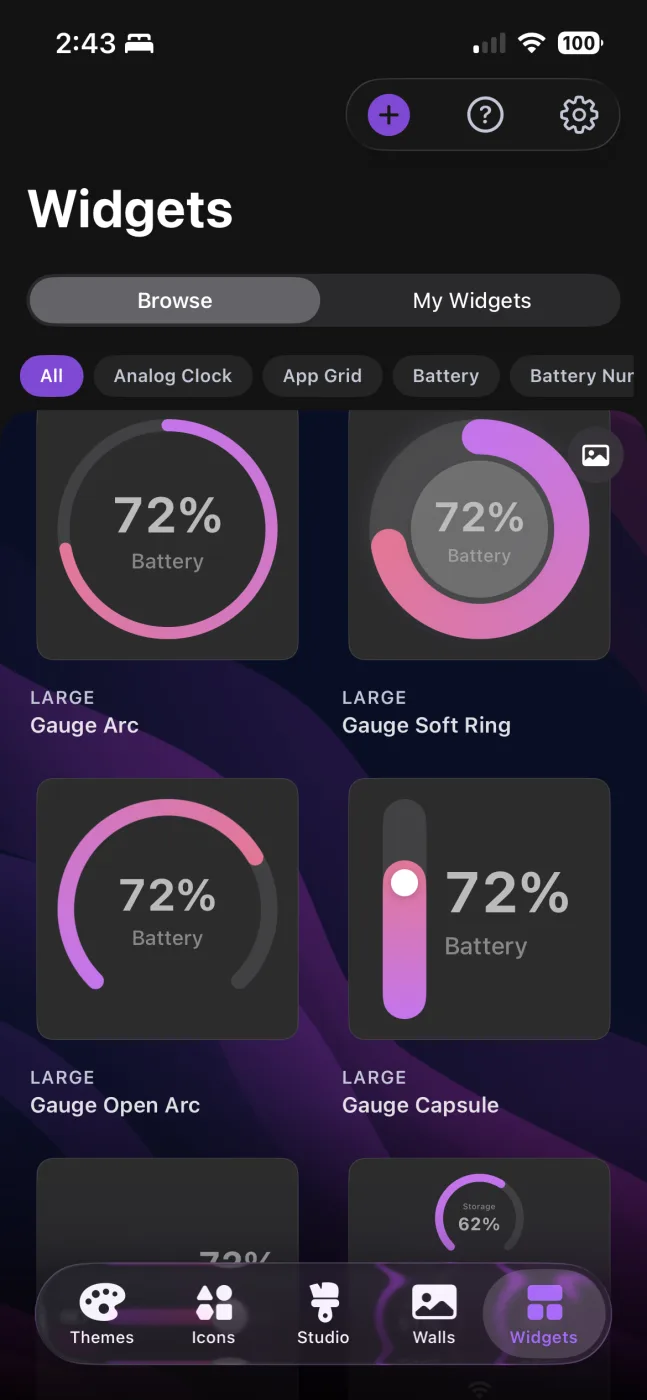
My first version of the Slider style looked a little off, so I spent some time getting its proportions right. Testing a dark theme also turned up a bug where the Soft Ring's raised center went solid white under white text, which made the number disappear. Both of those are fixed.
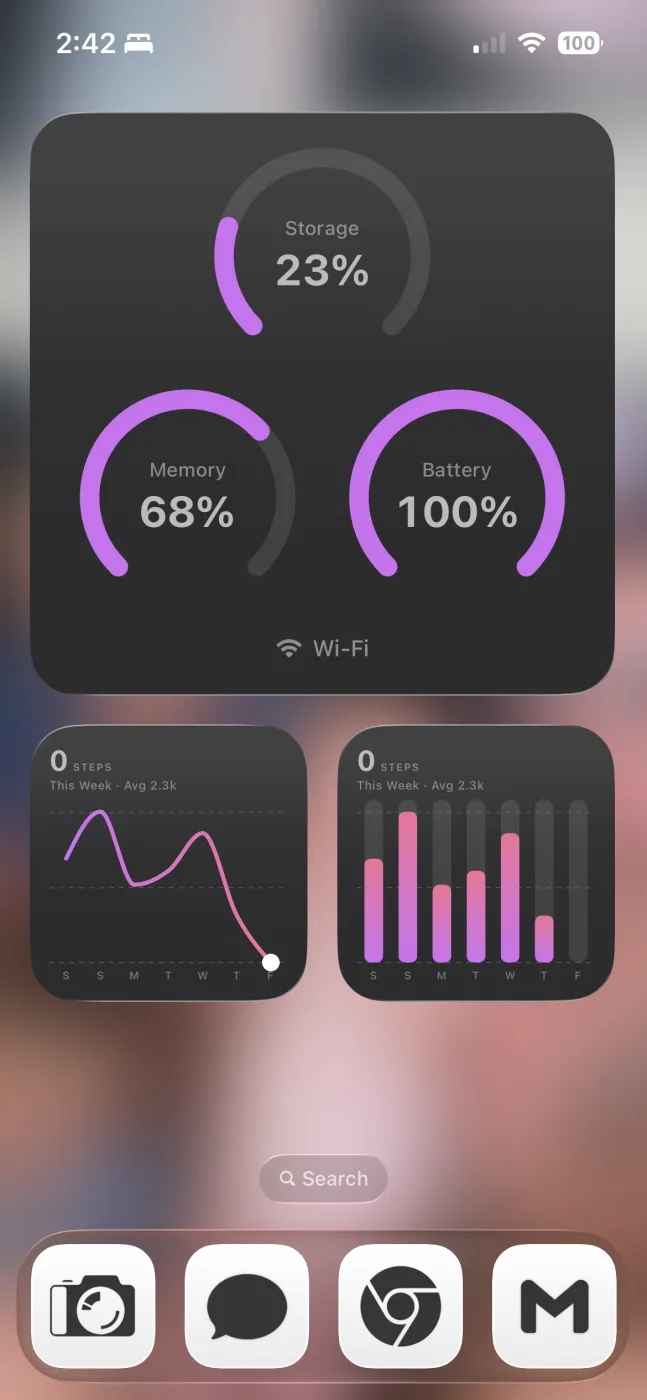
There's also a Device Stats layout that puts three gauges side by side for storage, memory, and battery, with a status row that shows your connection (Wi-Fi, cellular, wired, or offline), Low Power Mode when it's on, and a heat warning if your phone is running warm. Everything it shows is read on your phone, and nothing gets sent anywhere. The first large version had three tiny rings floating in a big square, so square widgets now put one big gauge on top with two smaller ones below.
Graph
Graph charts your steps over the last week, month, or year. It can also show the hourly forecast, either temperature or chance of rain, for your location or any city you pick.
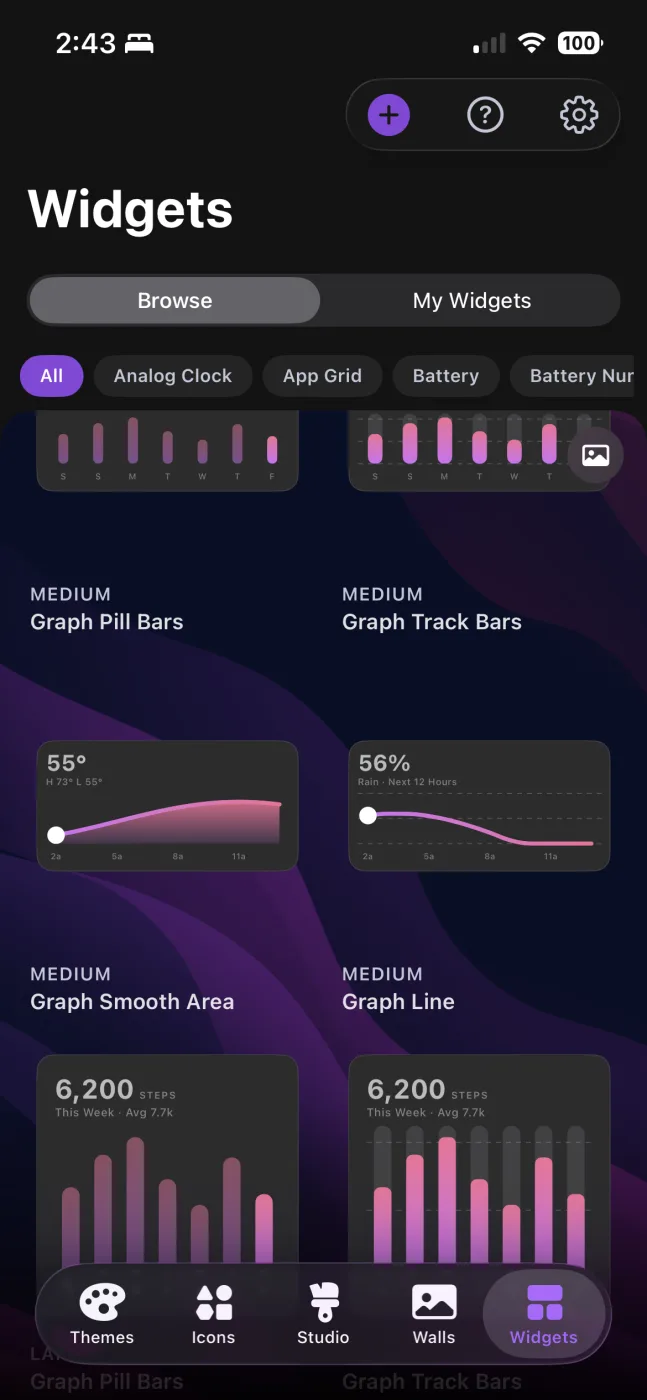
The first render had a couple of bugs that were easy to spot. The hour labels all showed up as "1..." and the bars looked like blobs on wider widgets. After fixing those, I added a daily step goal line you can turn on for the 7-day and 30-day views.
iOS gives the app your last 7 days of steps right away. From then on, Theme Studio keeps up to 400 days of history on your phone, so the 30-day and 12-month views fill in over time.
Retro Frame
Retro Frame is a glowing LCD clock in an 80s-style frame. You can also put one of your own photos in it with an orange film date stamp, like an old point-and-shoot camera.
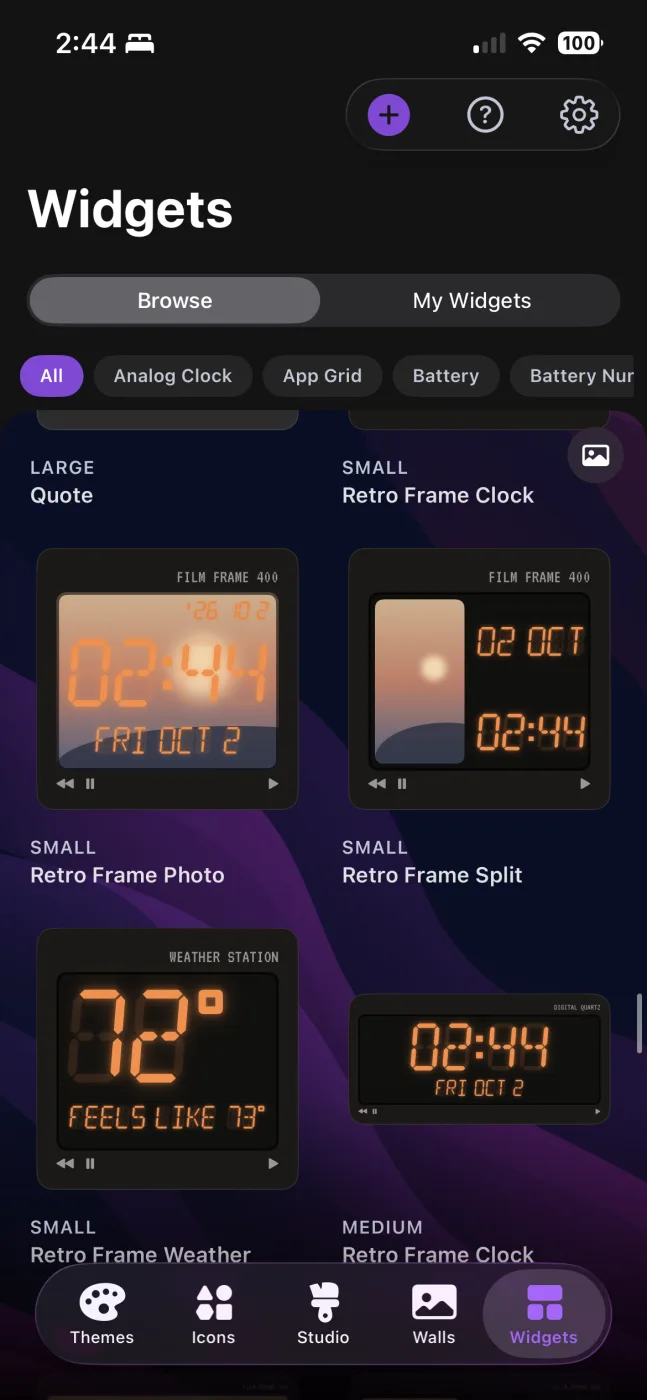
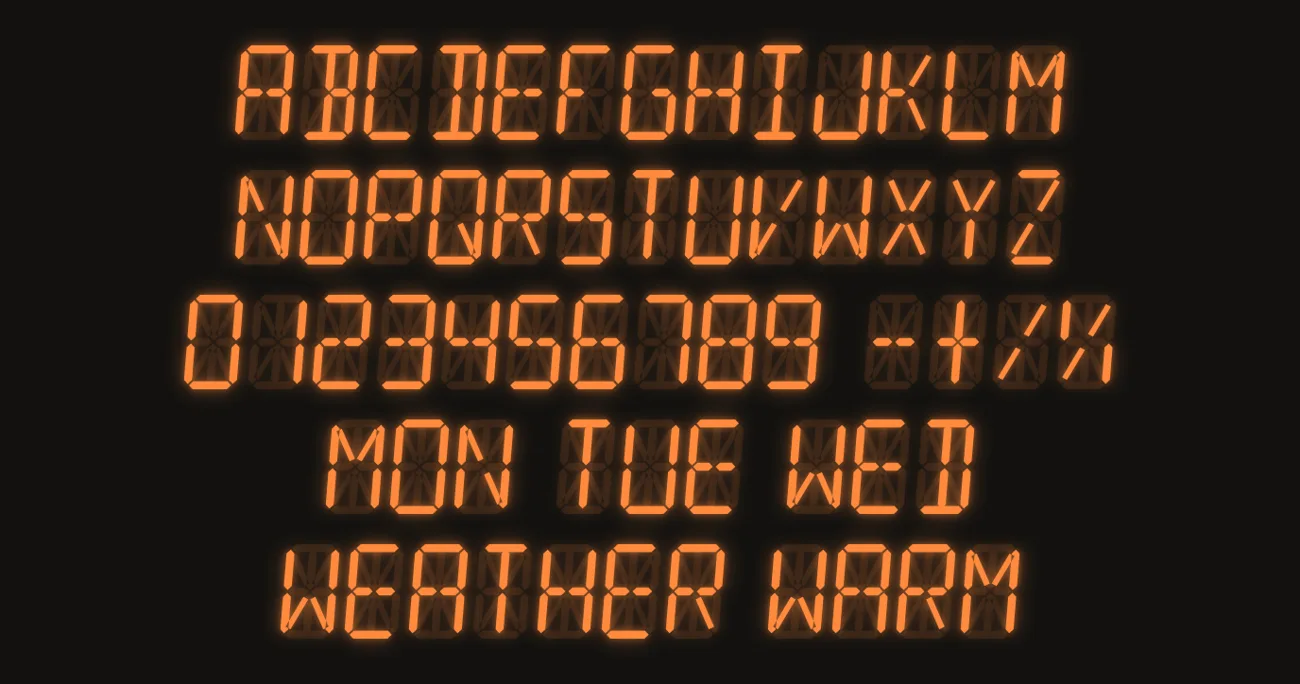
I didn't want to use an LCD font for this one, so every letter is drawn segment by segment. That's what makes the faint "ghost" segments behind the digits possible, just like on a real LCD.
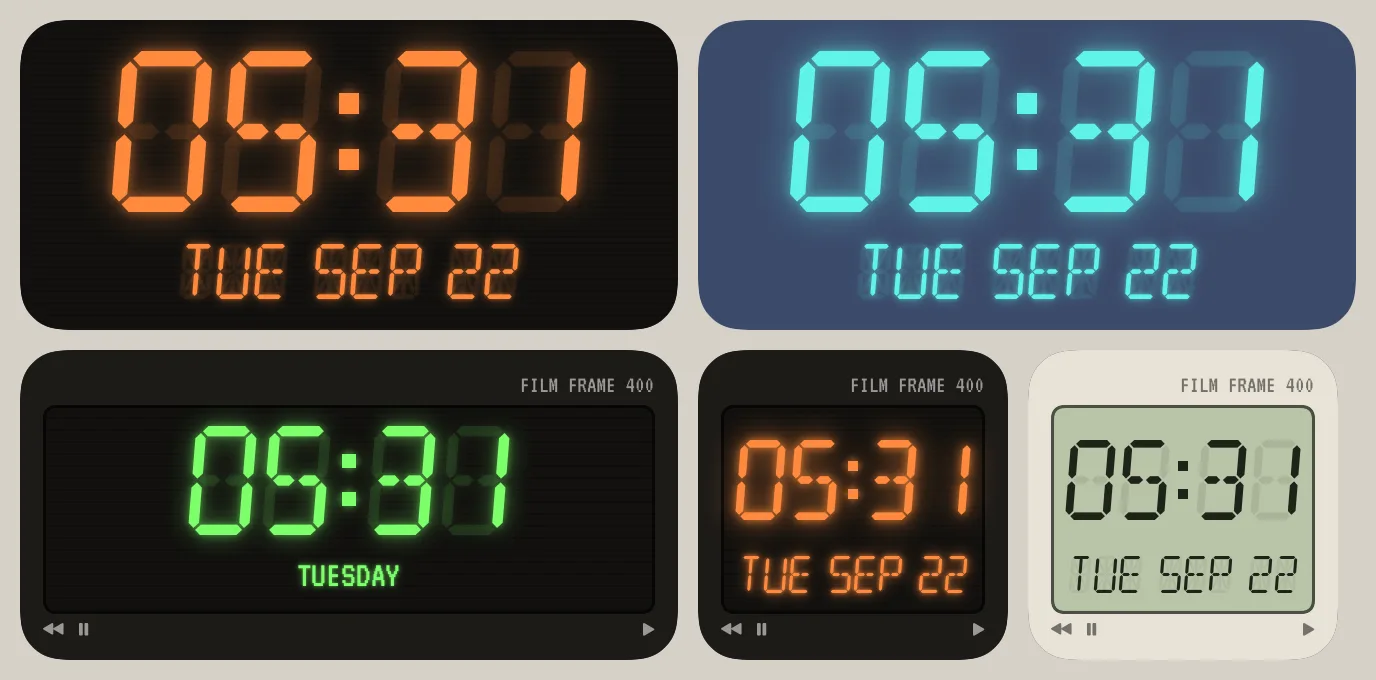
The screen can show the time, date, day, weather, your battery, or your own text, and a photo can sit behind the lettering or beside it. You can recolor or turn off every part of it, including the frame, the screen, the ghost segments, the glow, and the scanlines. The label on the frame defaults to "DIGITAL QUARTZ," and there's a menu of other 80s labels if you'd rather have "ALARM CHRONOGRAPH" or "STEREO CASSETTE."
All three new widgets are part of Theme Studio Pro.
Glassify
iOS 26 put a glass effect on almost everything, but a widget can't use it for its own background. The system draws that glass live on screen, and a widget background is a still image. So I built a version of it for baked widgets, called Glassify.
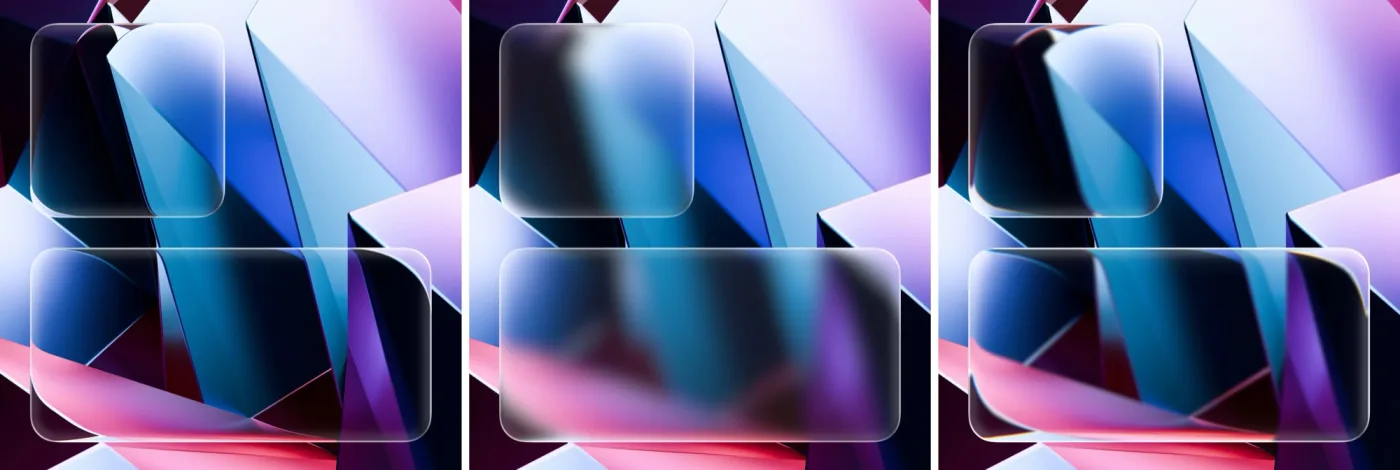
The idea is to treat the widget like a slab of glass with a rounded edge. In the flat middle, the wallpaper shows straight through. Around the edge, the wallpaper bends the way it would through a lens, so a little of what's just outside the widget curves around the corners. A thin highlight on the edge and a faint rainbow fringe finish the look. Since a baked widget already knows exactly which part of your wallpaper sits behind it, the glass bends the right part of your picture.

There are three styles to pick from:
- Clear keeps the wallpaper sharp and bends it at the edges.
- Frosted is soft, blurred glass.
- Crystal is thick glass with a strong bend and a rainbow edge.
Glassify is part of Theme Studio Pro.
Widget background blur
The icon background blur from 1.2 works for widgets now too. In the Widget Bakery, turn on Widget BG Blur and drag the slider to soften the wallpaper behind a widget while the rest of your wallpaper stays sharp. Widget BG Blur is free.
Smaller things
- You can pick any SF Symbol for the Battery widget's center icon and for the Popout notch button.
- On iPad, the Studio preview always fits on the screen now.
- The keyboard is easier to dismiss in the widget editors.
Easier-to-read buttons on iOS 26 and 27
iOS 26 put toolbar buttons on see-through glass, and Theme Studio's purple button text got hard to read over some themes.
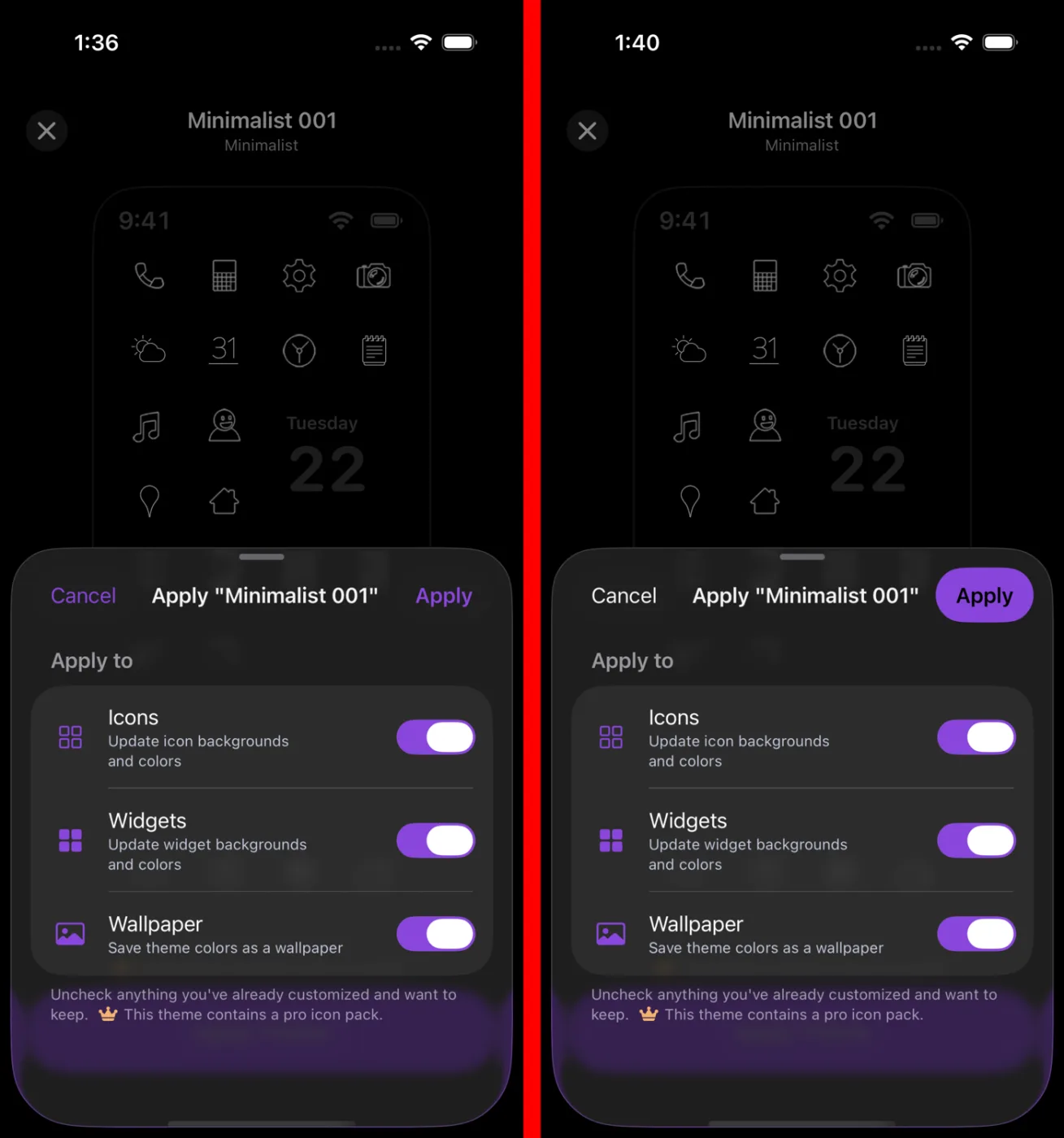
Then iOS 27 added a twist of its own. It picked black text for the purple buttons and ignored the setting that asked for white. It took me a few tries to find a fix that held up on both versions, and the lesson for me was to test on every version of iOS people actually use.