A minimalist home screen keeps only what you need and makes it look calm. Theme Studio's Minimalist pack pairs simple icons with plain, solid-color wallpapers in black, white, and soft tones, so nothing on your iPhone feels busy.
Minimalist home screen ideas
These are real home screens from Theme Studio's Minimalist pack. Tap one to see the theme, or type its code into the app's Themes tab to open it.
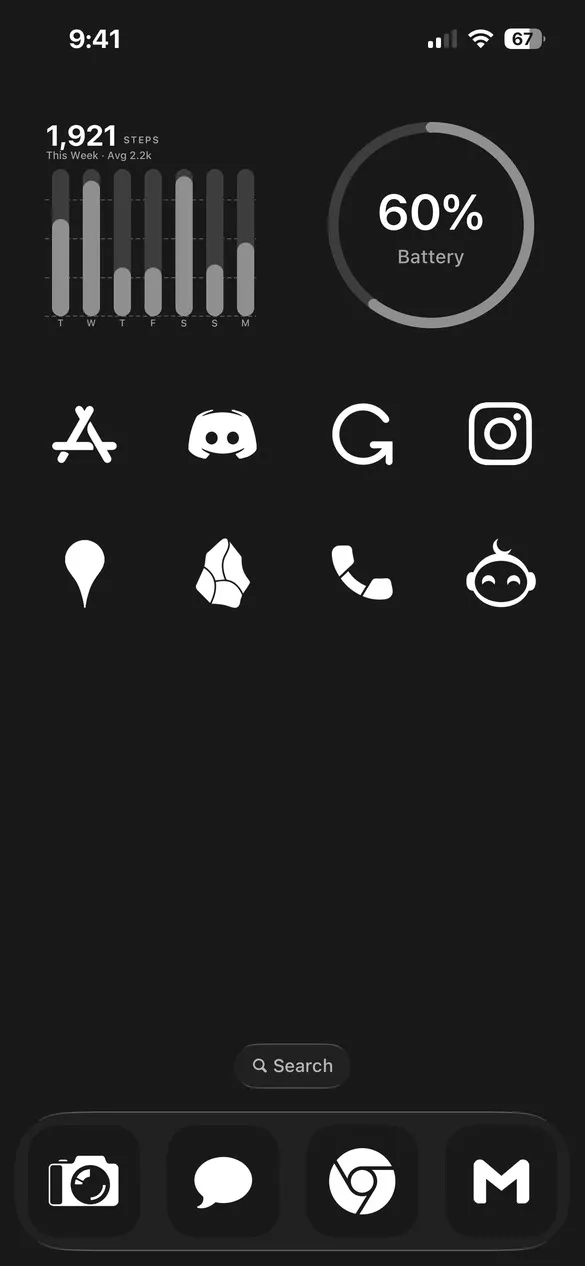 Minimalist 002 · code FRRQ
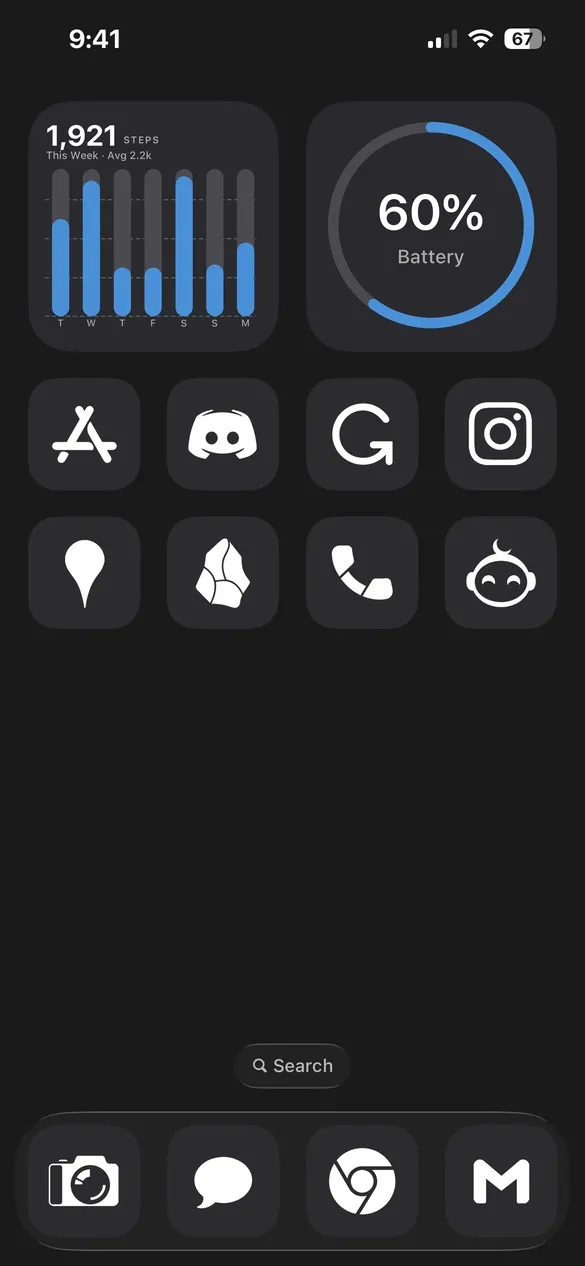 Minimalist 004 · code ZKH7
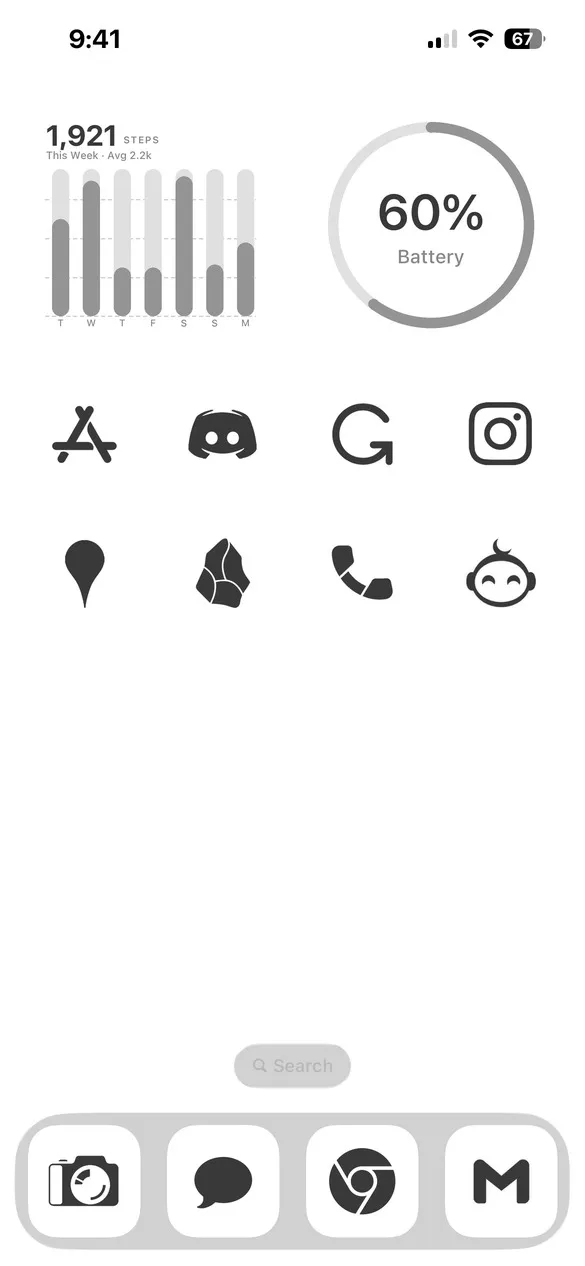 Minimalist 008 · code V6BT
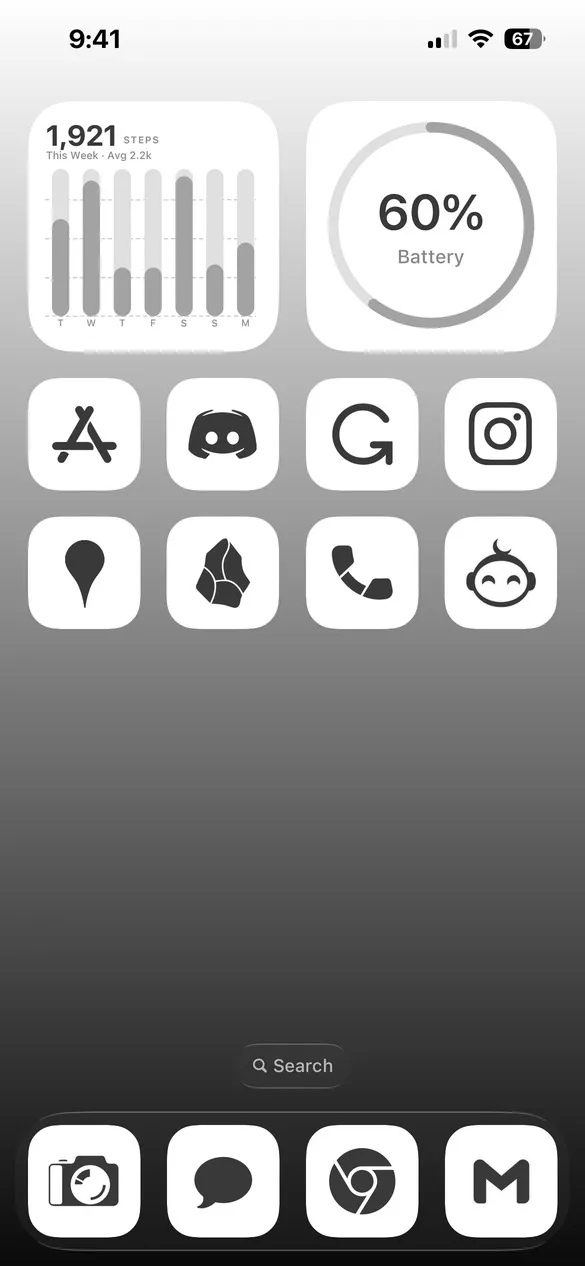 Minimalist 009 · code 39VQ
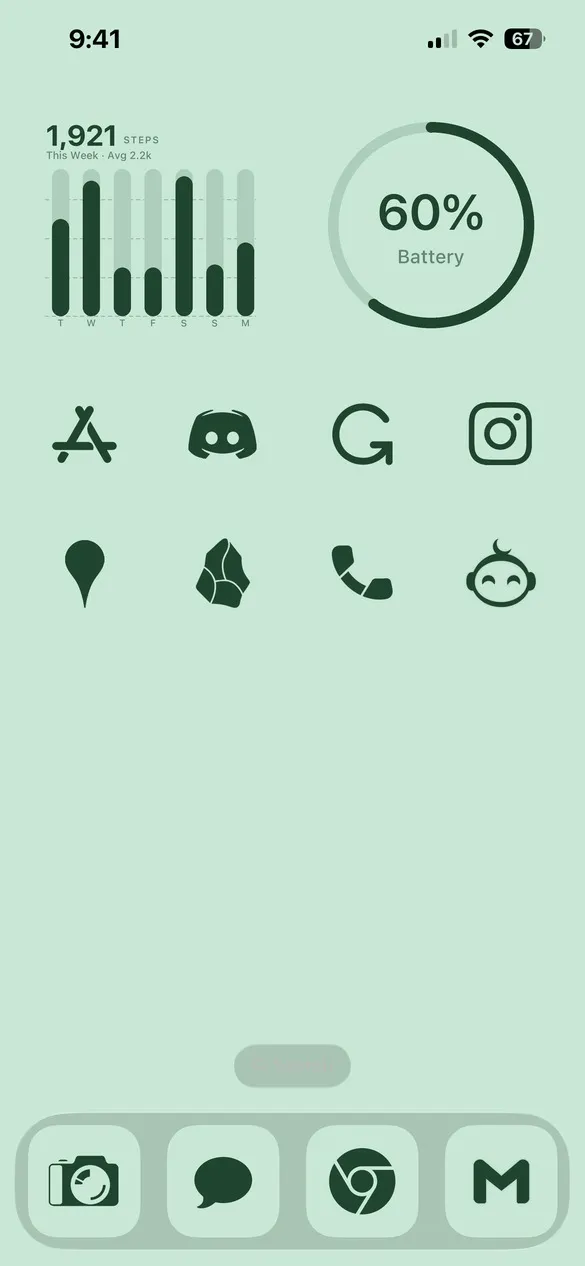 Minimalist 016 · code CZW5
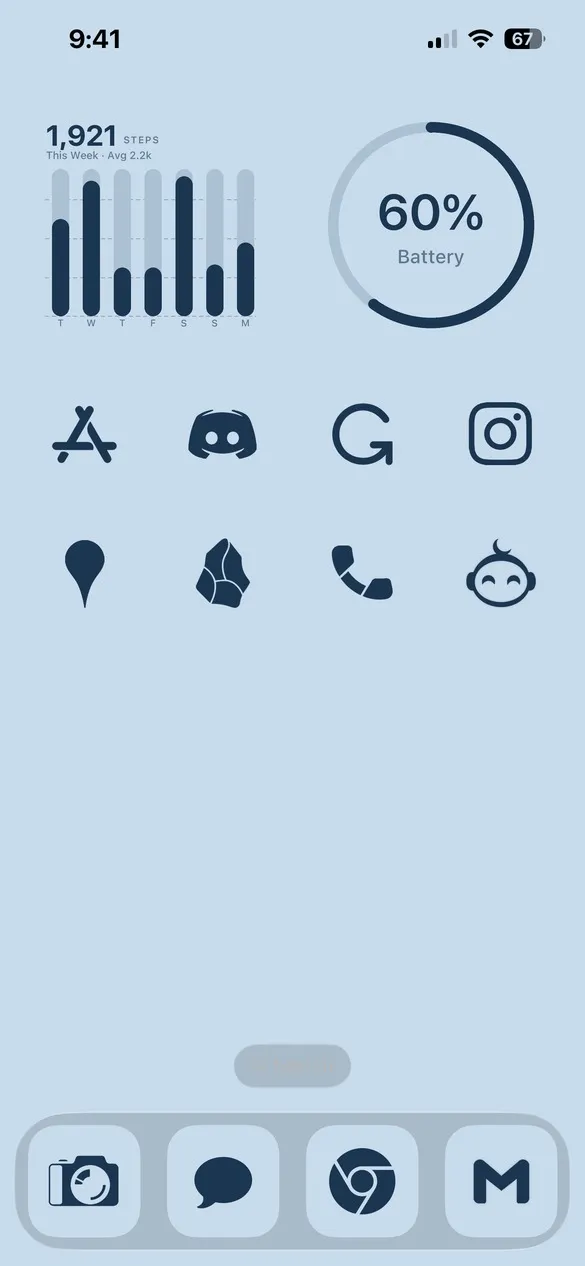 Minimalist 018 · code RM52
What makes a minimalist home screen
- One or two colors. A single background color and an icon color that contrasts with it.
- Simple icons. Clean, solid or outline shapes with no extra detail.
- Plain wallpapers. Solid colors or soft gradients instead of busy photos.
- Fewer widgets. A clock or battery widget, and lots of empty space.
How to get a minimalist theme on your iPhone
- Download Theme Studio from the App Store and open the Themes tab.
- Open the Minimalist pack, or type one of the codes above into the Have a theme code? box.
- Tap Apply Theme. Your icons, widgets, and wallpaper are set up together.
- Export your icons and add them to your home screen with Apple's Shortcuts app. The step-by-step guide walks through it.
Frequently asked questions
Are the minimalist themes free?
Theme Studio is free to download, and almost all of the minimalist themes use the free Solid icons, so you can use them without Pro.
How do I make my home screen look minimal?
Start with a minimalist theme, then remove apps you rarely use from your home screen and keep the rest on one or two pages. Theme Studio sets the icons, widgets, and wallpaper for you.
Does it work on iPad?
Yes. Theme Studio works on iPhone and iPad.