Black themes give your iPhone a sleek, dark look that's easy on the eyes at night. Theme Studio's Dark pack has more than 150 of them, pairing black and charcoal wallpapers with white, cyan, purple, pink, or red icons and widgets.
Dark home screen ideas
These are real home screens from Theme Studio's Dark pack. Tap one to see the theme, or type its code into the app's Themes tab to open it.
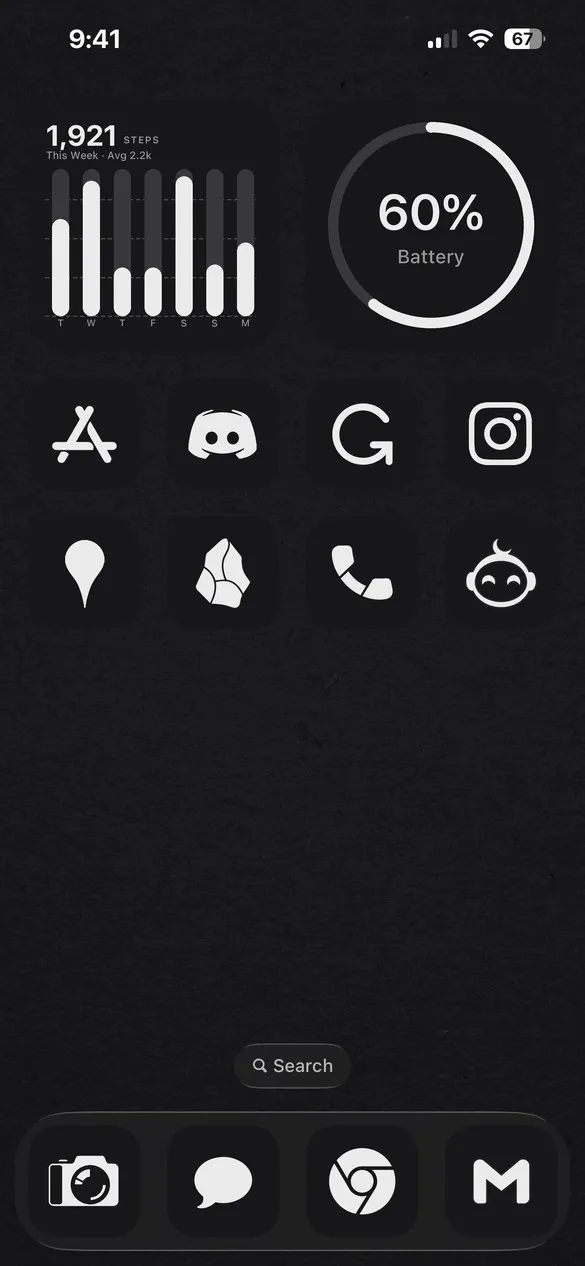 Dark 001 · code QNCF
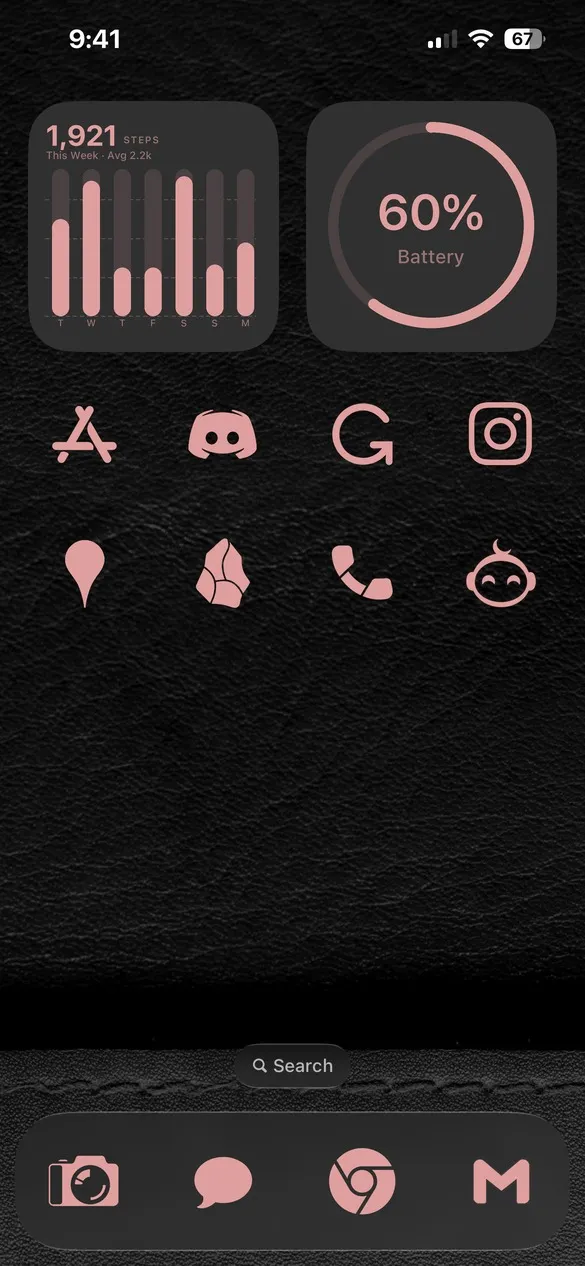 Dark 022 · code JMMF
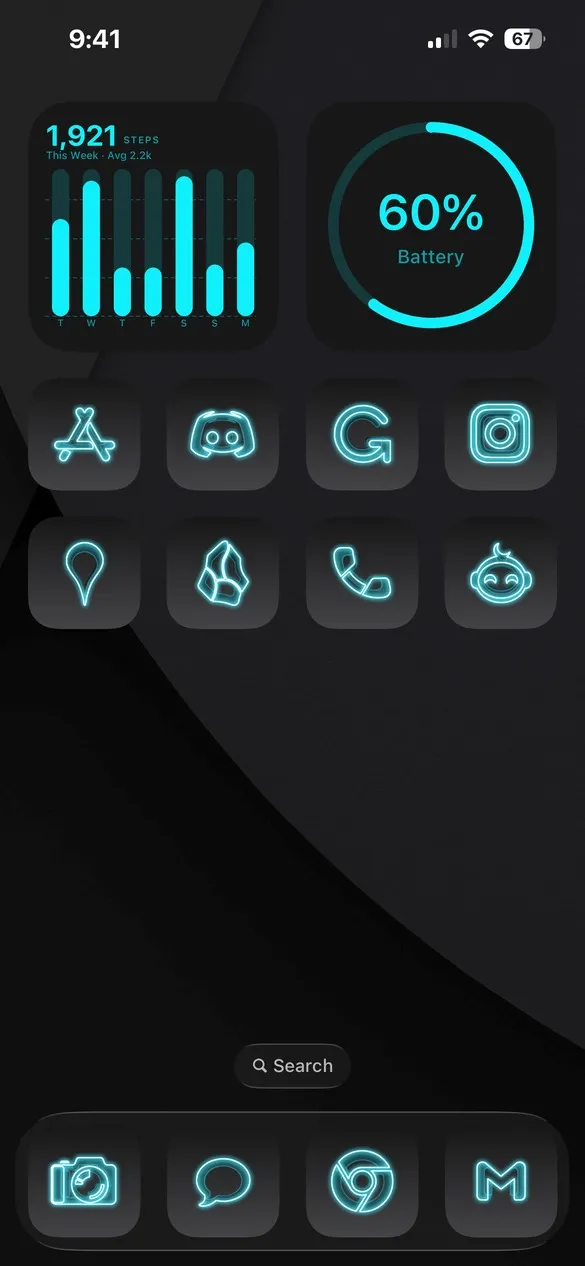 Dark 029 · code XFBH
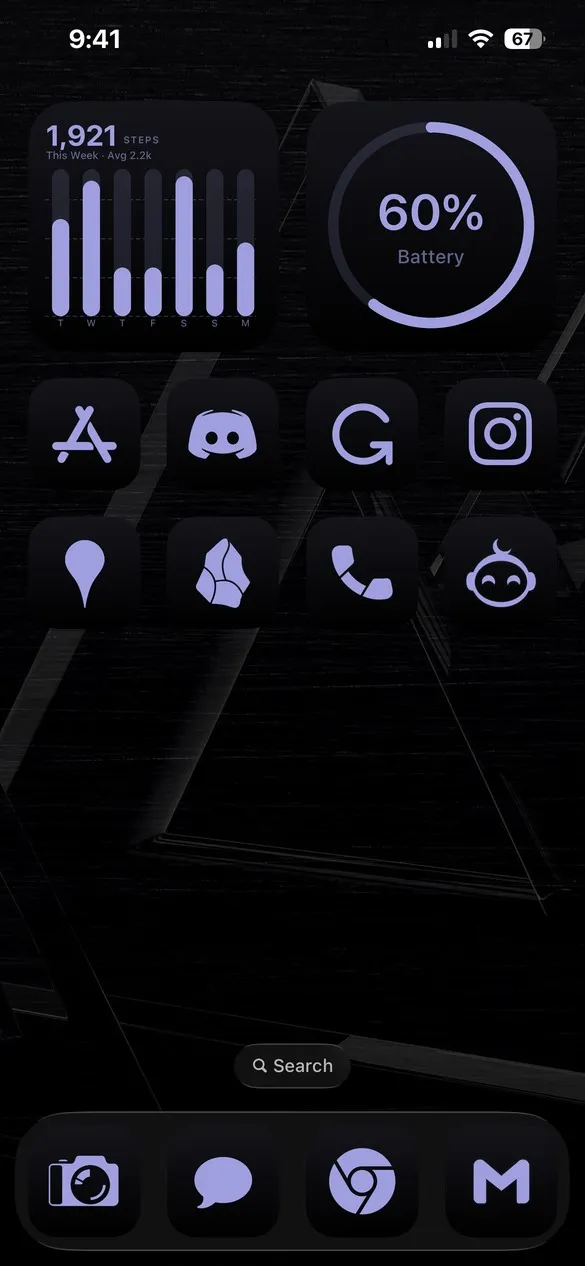 Dark 057 · code TWFT
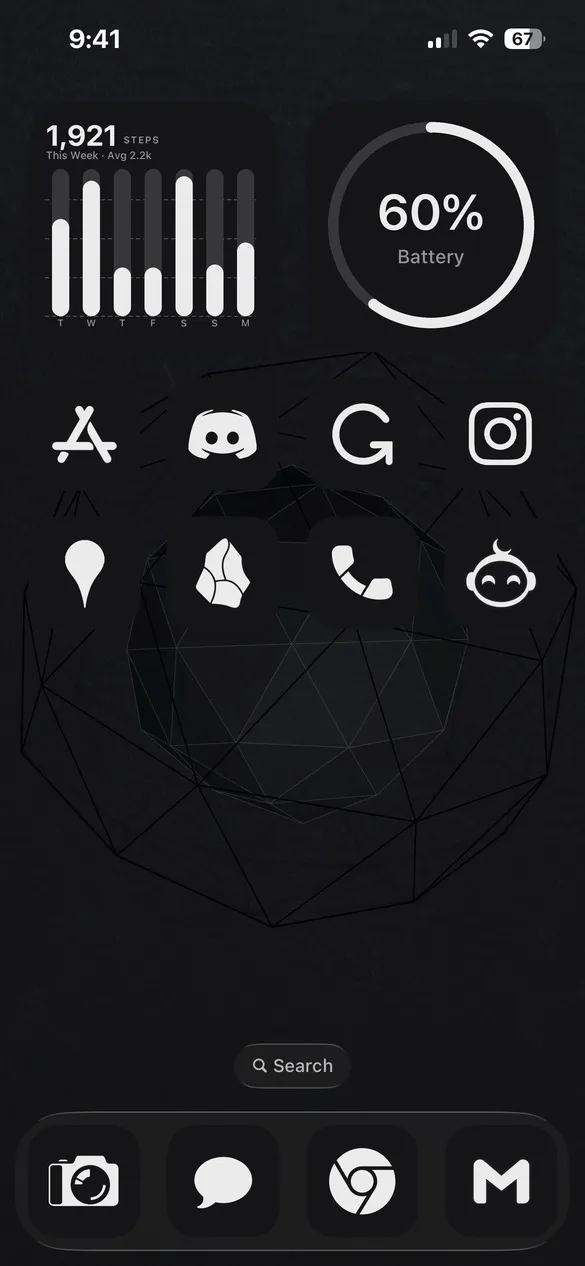 Dark 085 · code 223K
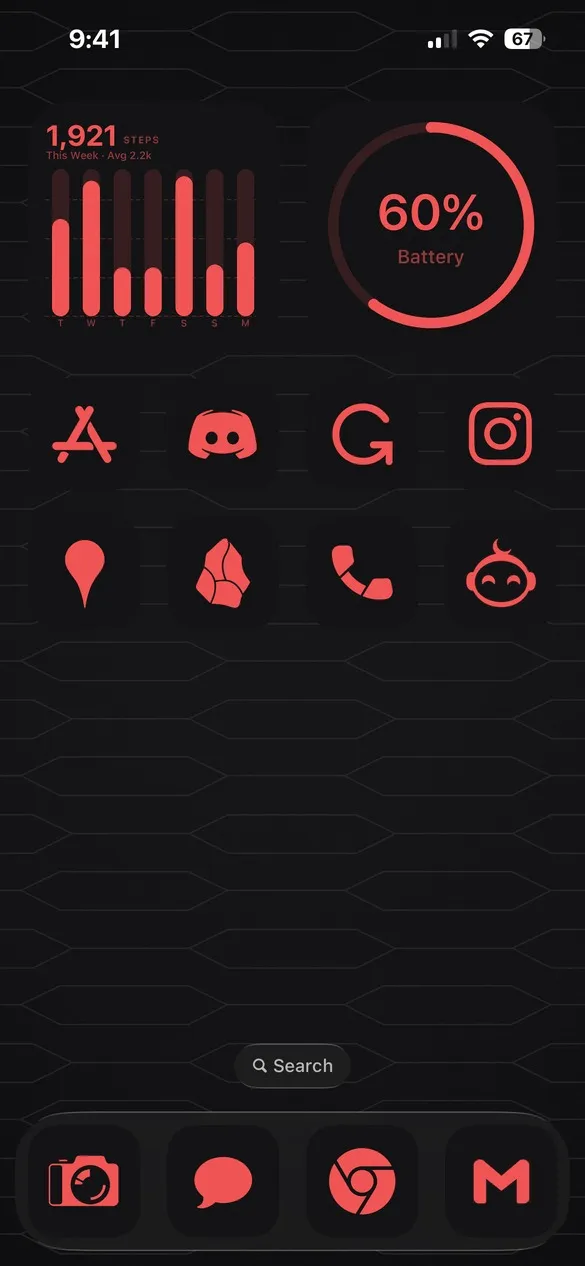 Dark 127 · code SZPW
What makes a black home screen
- Black or charcoal backgrounds. Plain, textured, or geometric.
- One accent color. White for a classic look, or a neon color for a glow.
- Solid or outline icons. Both look sharp on black.
- Matching widgets. Rings, bars, and clocks in the accent color.
How to get a black theme on your iPhone
- Download Theme Studio from the App Store and open the Themes tab.
- Open the Dark pack, or type one of the codes above into the Have a theme code? box.
- Tap Apply Theme. Your icons, widgets, and wallpaper are set up together.
- Export your icons and add them to your home screen with Apple's Shortcuts app. The step-by-step guide walks through it.
Frequently asked questions
Are the black themes free?
Theme Studio is free to download, and most dark themes use the free Solid icons. Others use Pro icon packs like Lines and The Grid; the app tells you before you export, and you can switch those icons to Solid.
Does a black theme save battery?
On iPhones with OLED screens, darker wallpapers use a little less power than bright ones. Theme Studio's dark themes also look great with iOS Dark Mode turned on.
Does it work on iPad?
Yes. Theme Studio works on iPhone and iPad.