Terminal themes make your iPhone look like an old computer monitor: glowing green, amber, or cyan text on a dark screen, with soft scanlines across the wallpaper. Theme Studio's Terminal pack gives every icon and widget that same retro-futuristic glow.
Retro terminal home screen ideas
These are real home screens from Theme Studio's Terminal pack. Tap one to see the theme, or type its code into the app's Themes tab to open it.
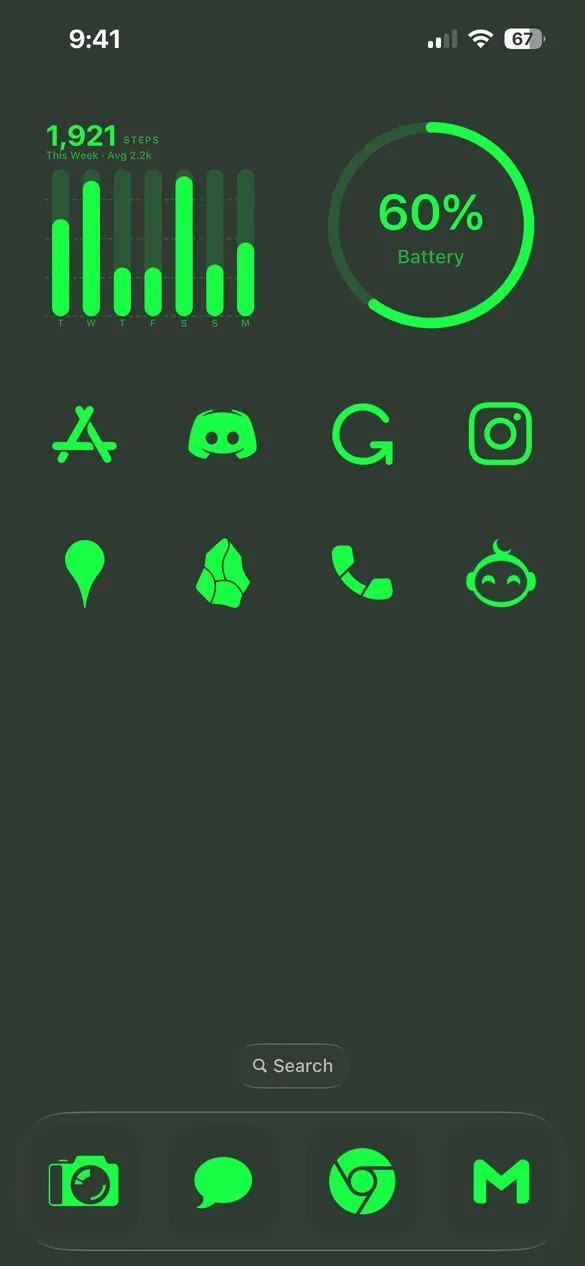 Terminal 001 · code PM9Z
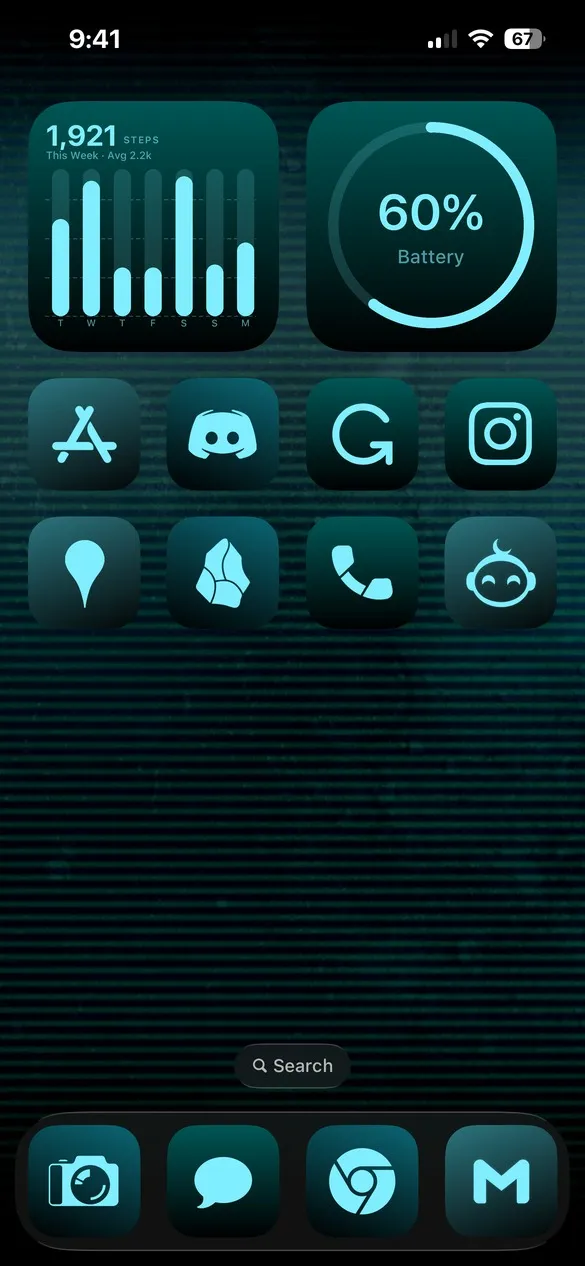 Terminal 006 · code 2VDX
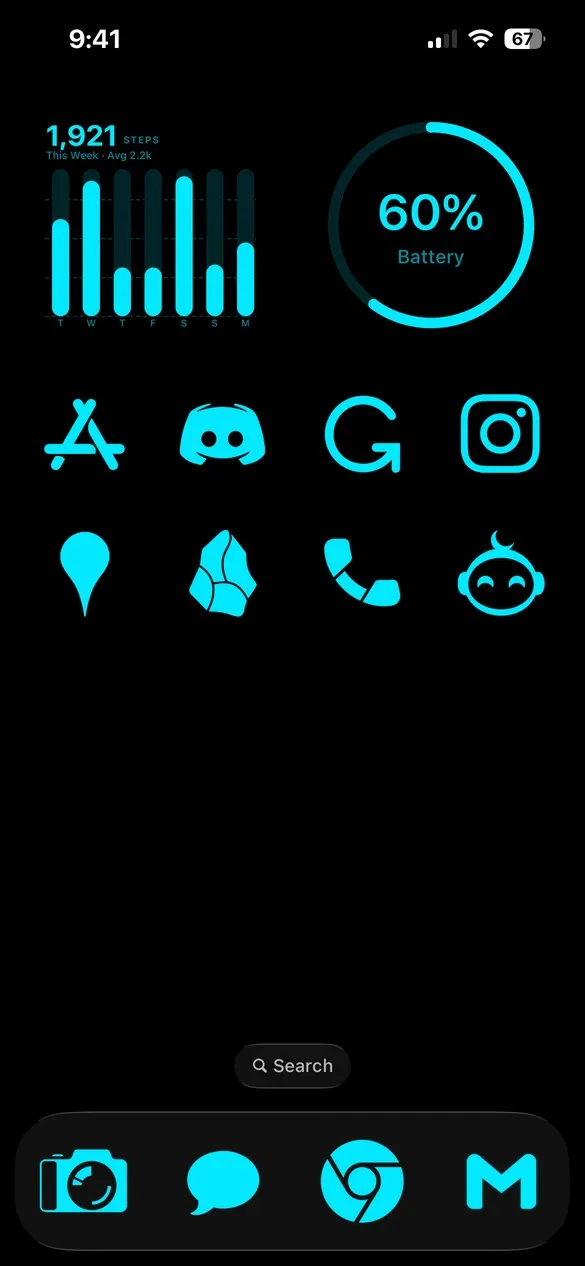 Terminal 016 · code BWN9
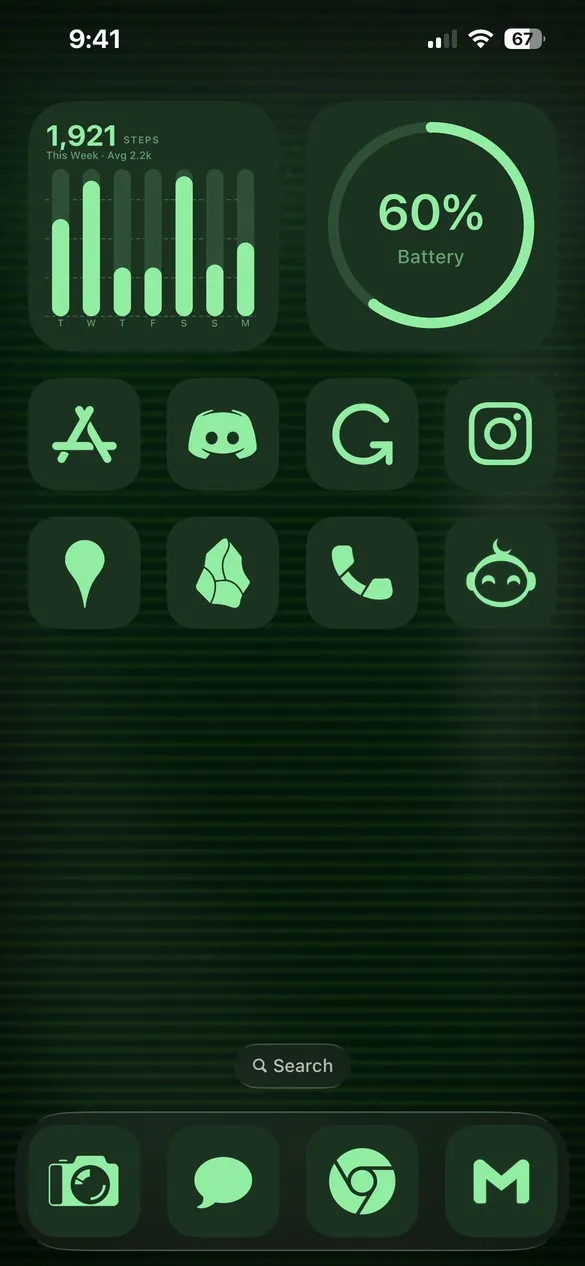 Terminal 021 · code 2WN5
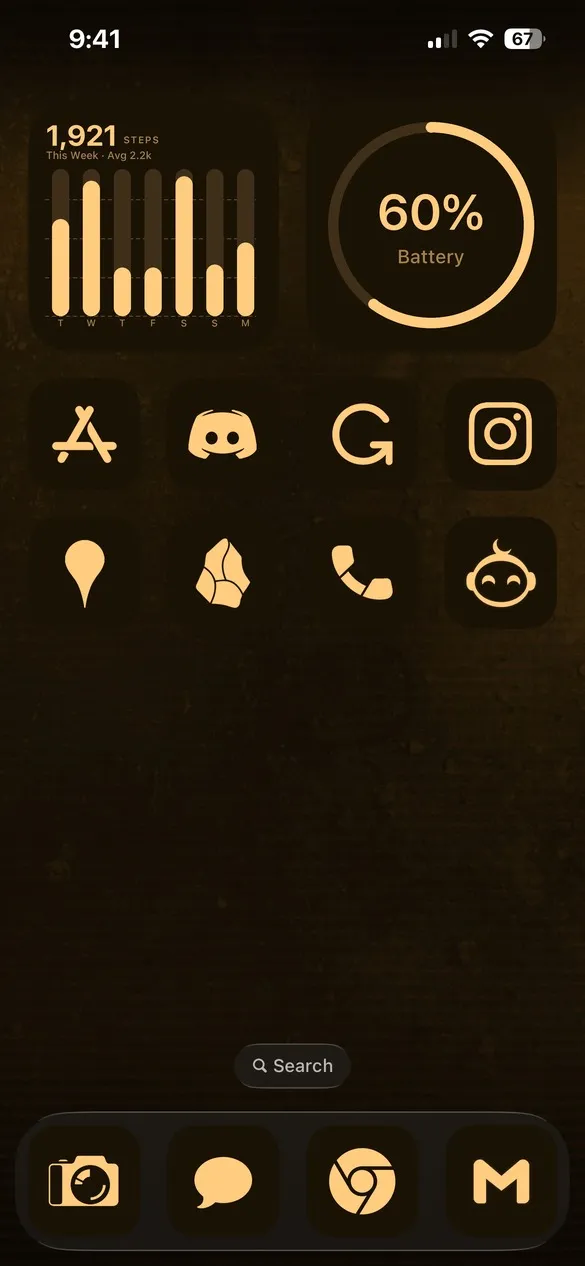 Terminal 046 · code 55R6
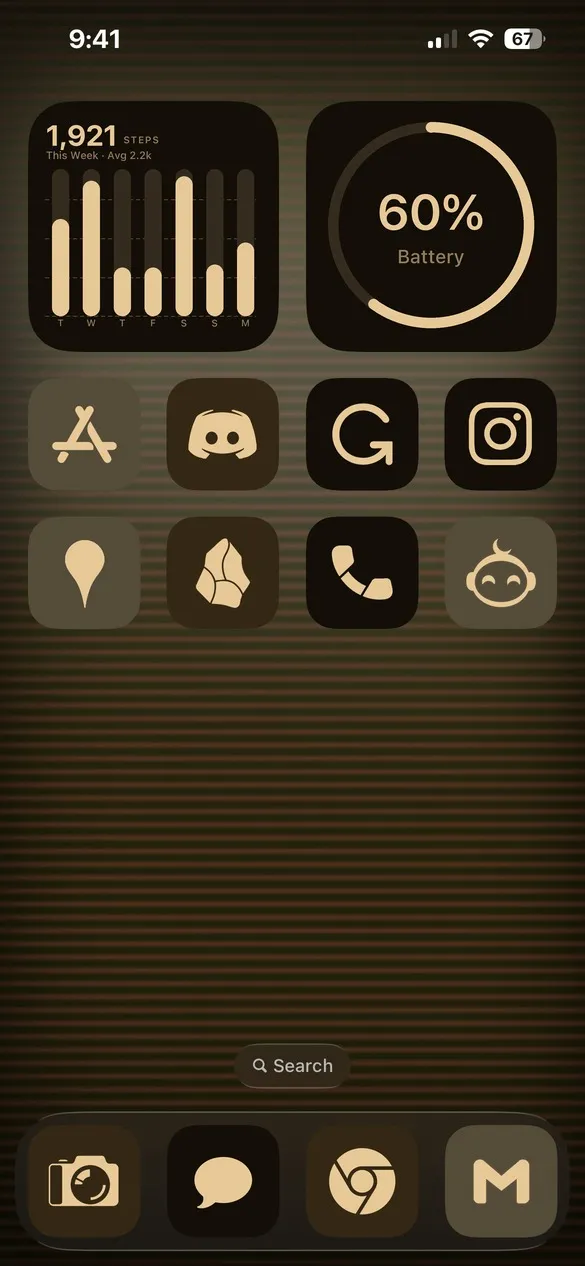 Terminal 056 · code 395N
What makes a retro terminal home screen
- One glowing color. Green, cyan, amber, or cream on near black.
- Scanlines. Wallpapers that look like an old CRT screen.
- Monochrome icons. Every icon in the same glowing tint.
- Data-style widgets. Step counts and battery rings that look like readouts.
How to get a retro terminal theme on your iPhone
- Download Theme Studio from the App Store and open the Themes tab.
- Open the Terminal pack, or type one of the codes above into the Have a theme code? box.
- Tap Apply Theme. Your icons, widgets, and wallpaper are set up together.
- Export your icons and add them to your home screen with Apple's Shortcuts app. The step-by-step guide walks through it.
Frequently asked questions
Are the retro terminal themes free?
Theme Studio is free to download, and most terminal themes use the free Solid icons, so you can use them without Pro. Some use The Grid icons, which need Pro to export.
Can I change the glow color?
Yes. After you apply a theme, set the icon and widget color to any shade of green, cyan, amber, or anything else in the Studio tab.
Does it work on iPad?
Yes. Theme Studio works on iPhone and iPad.