Royalcore brings the look of palaces and royal courts to your iPhone: gilded gates, marble halls, crowns, chandeliers, and formal gardens. Theme Studio's Royalcore pack pairs those wallpapers with gold and ivory icons and widgets for a home screen that feels grand.
Royalcore home screen ideas
These are real home screens from Theme Studio's Royalcore pack. Tap one to see the theme, or type its code into the app's Themes tab to open it.
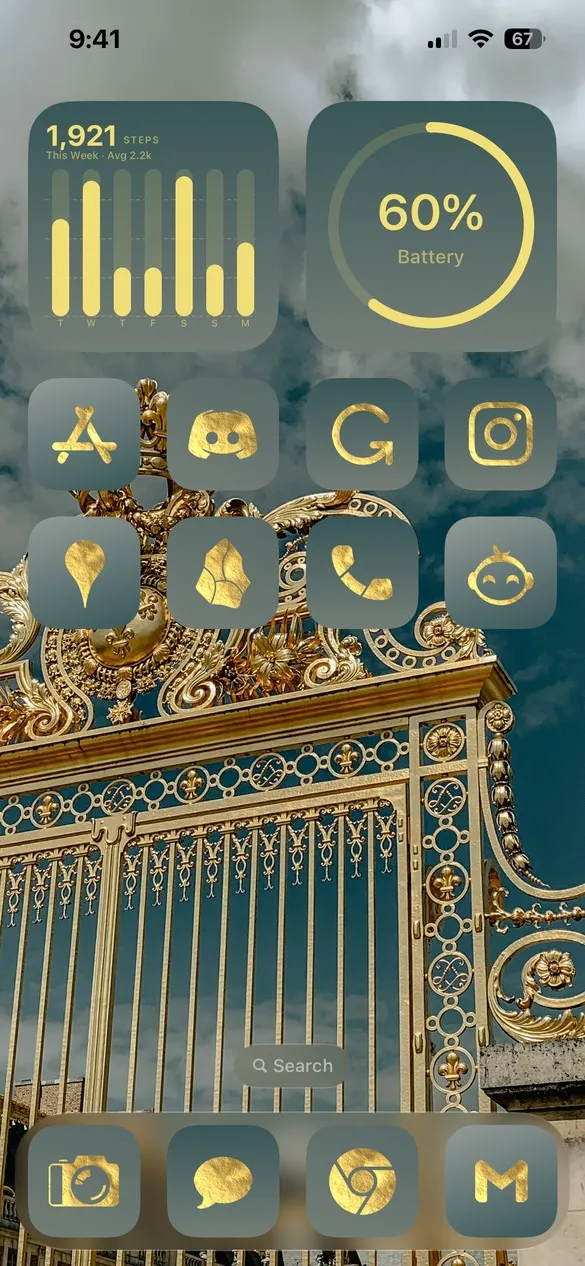 Royalcore 001 · code RBCC
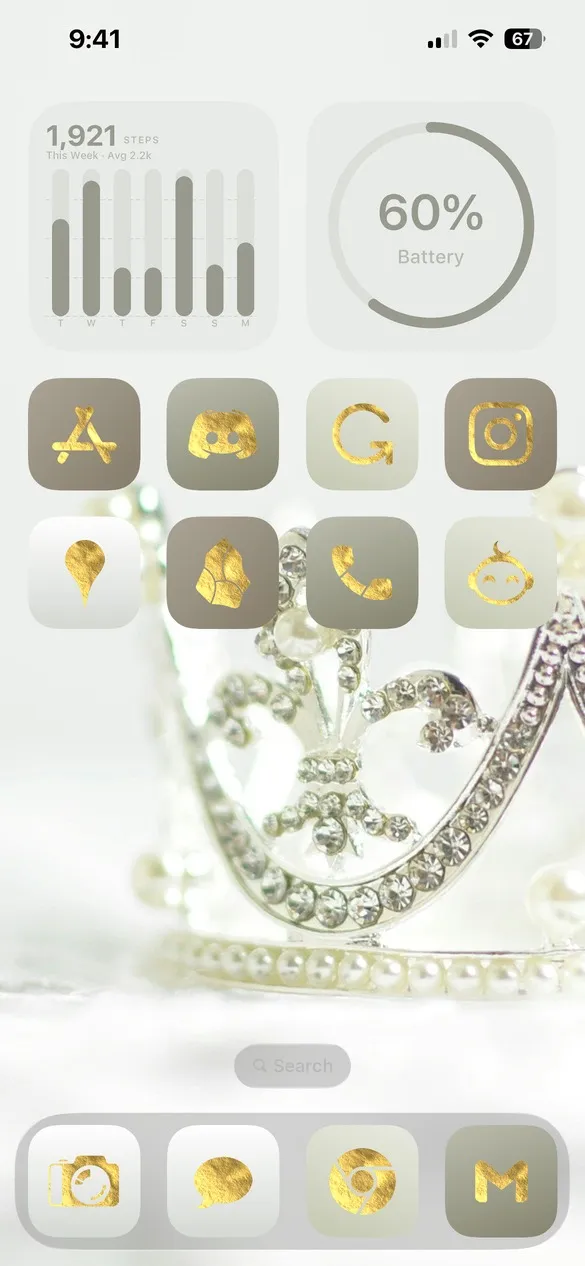 Royalcore 004 · code 5JXF
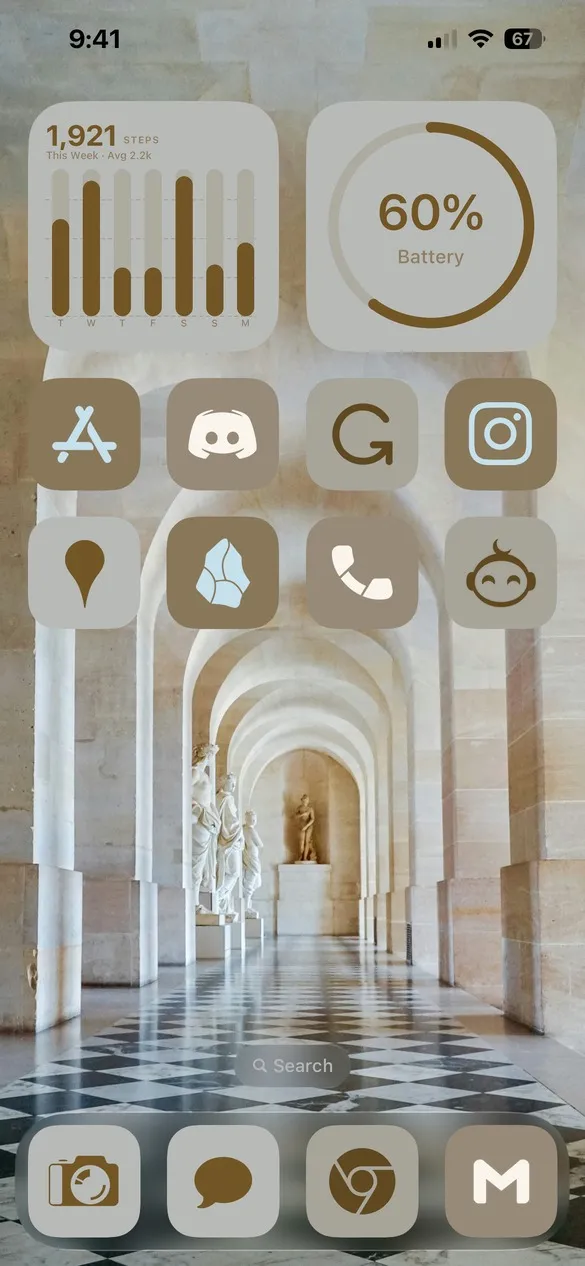 Royalcore 005 · code SGRB
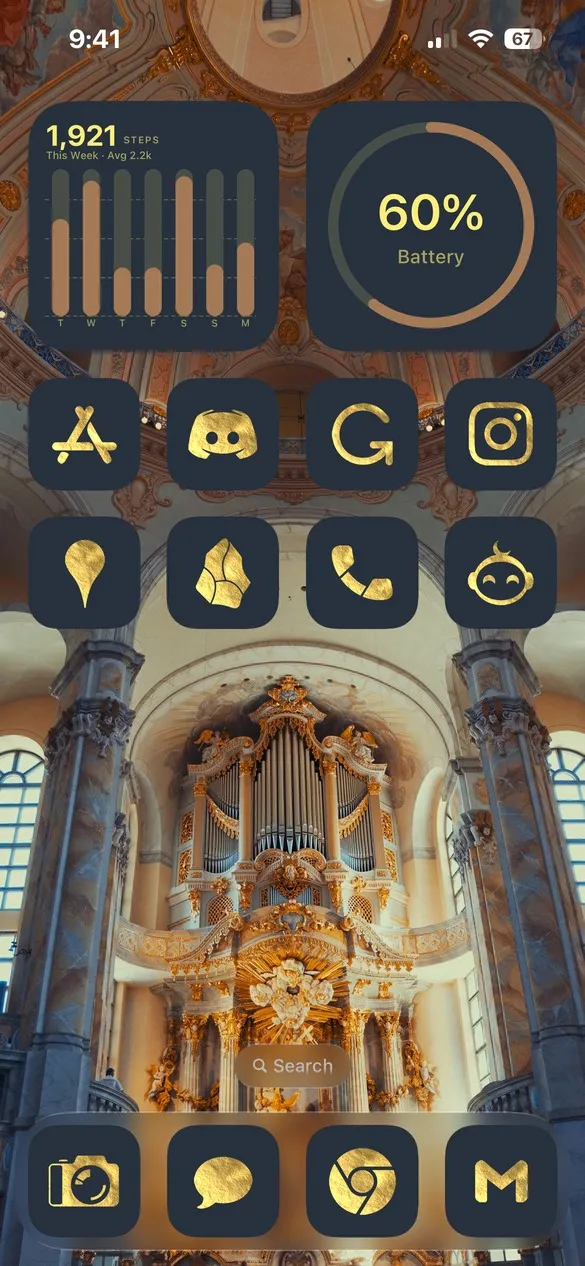 Royalcore 009 · code KJZ9
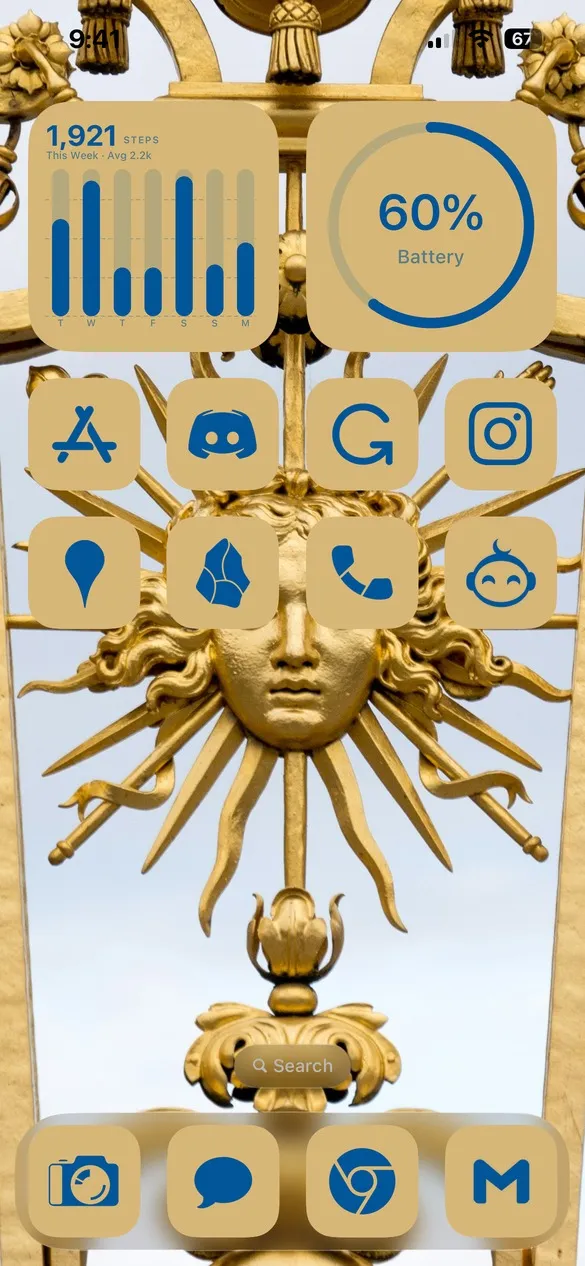 Royalcore 010 · code DX55
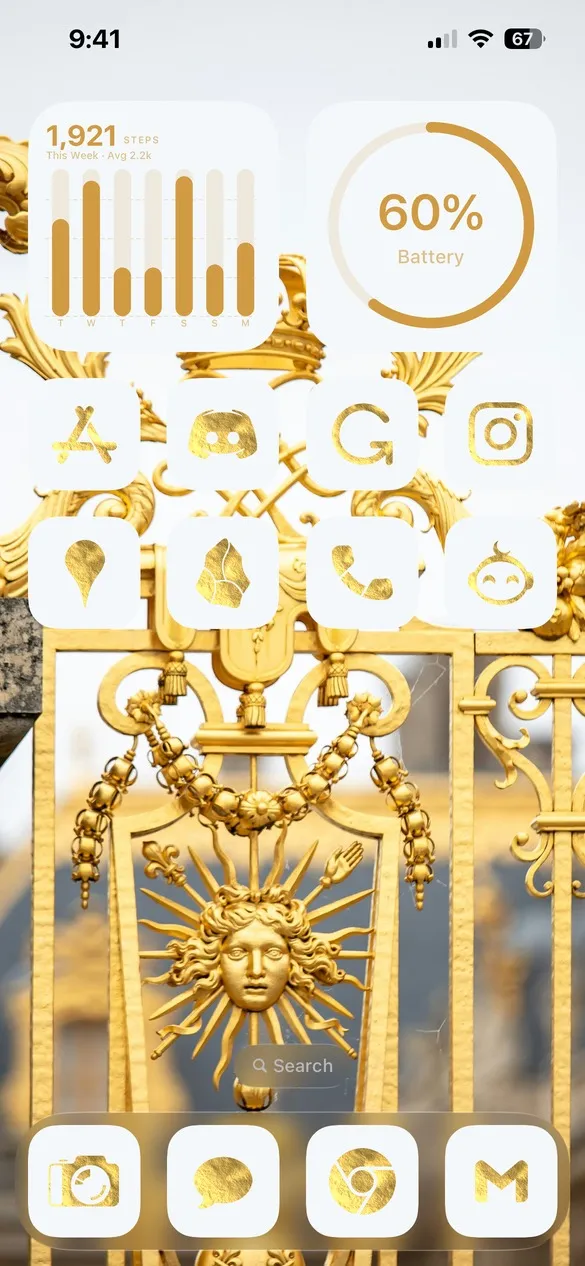 Royalcore 017 · code 5GST
What makes a royalcore home screen
- Gold everywhere. Gilded details and Gold Leaf icons on some themes.
- Palace wallpapers. Grand halls, ornate gates, gardens, and crowns.
- Rich colors. Ivory, navy, deep purple, and antique gold.
- Elegant widgets. Clocks and calendars in muted, matching tones.
How to get a royalcore theme on your iPhone
- Download Theme Studio from the App Store and open the Themes tab.
- Open the Royalcore pack, or type one of the codes above into the Have a theme code? box.
- Tap Apply Theme. Your icons, widgets, and wallpaper are set up together.
- Export your icons and add them to your home screen with Apple's Shortcuts app. The step-by-step guide walks through it.
Frequently asked questions
Are the royalcore themes free?
Theme Studio is free to download, and most royalcore themes use the free Solid icons. Themes with Gold Leaf icons need Pro to export those icons, or you can switch them to Solid.
Are there gold icons for royalcore?
Yes. Several royalcore themes use the Gold Leaf icon pack. See the gold icon pack for iPhone for more gold looks.
Does it work on iPad?
Yes. Theme Studio works on iPhone and iPad.